Using ESP32-S2’s Native USB OTG Support in Arduino Projects for Direct PC Communication
You skip the external USB-to-Serial chip by using your ESP32-S2’s native USB OTG, connecting D+ (GPIO20) and D− (GPIO19) directly to USB-cutting cost, saving PCB space, and boosting speed to 12 Mbps. In Arduino IDE, set USB CDC mode and pick “ESP32 USB CDC/OTG” to upload at 921600 baud with no manual reset. It just works across Windows, macOS, Linux. Use a 1.5kΩ pull-up on D+ for reliability. If it stalls, check wiring and boot mode. You’ll access what most clones still get wrong.
We are supported by our audience. When you purchase through links on our site, we may earn an affiliate commission, at no extra cost for you. Learn more. Last update on 19th July 2026 / Images from Amazon Product Advertising API.
Notable Insights
- The ESP32-S2 has a built-in USB OTG controller, enabling direct USB communication without external chips.
- Native USB supports CDC and HID device emulation, allowing the board to appear as a virtual COM port or peripheral.
- Use Arduino IDE’s USB CDC mode and enable “USB CDC on Boot” for automatic serial communication at startup.
- Connect GPIO20 to D+ and GPIO19 to D− directly, with proper 1.5kΩ pull-up on D+ for reliable USB enumeration.
- Flash and debug via native USB by entering Download Mode, using “ESP32 USB CDC/OTG” in Arduino IDE’s port menu.
Skip the USB-to-Serial Chip
You can skip the USB-to-Serial chip entirely when working with the ESP32-S2, thanks to its built-in USB OTG controller that handles programming and serial communication directly over USB. No need for an external USB-to-Serial adapter-just use the internal USB peripheral. In Arduino IDE, set USB Mode to CDC, and the board shows up as a native serial device. The USB CDC interface runs at full-speed USB 1.1 (12 Mbps) over GPIO19 (D-) and GPIO20 (D+), providing stable, plug-and-play communication. Testers report reliable uploads and real-time Serial output without driver conflicts. Cutting out the FTDI or CP2102 chip simplifies your PCB, reduces cost, and improves reliability. You’re not just saving space-you’re using the ESP32-S2 as it was meant to be used, with direct internal USB support making prototyping faster and deployment smoother, especially in automation or robotics builds where every wire and component counts.
Compare USB OTG vs. Traditional Serial
What if your microcontroller could handle USB tasks without extra chips? With the ESP32-S2’s native USB OTG, you get direct PC communication, skipping the traditional serial converter entirely. Unlike traditional serial that relies on GPIO1/GPIO3 and external USB-to-UART bridges, USB OTG lets the ESP32-S2 act as a full USB device-supporting CDC, HID, and faster 12 Mbps data rates with built-in flow control.
| Feature | USB OTG (ESP32-S2) | Traditional Serial |
|---|---|---|
| Speed | 12 Mbps (full-speed USB) | Up to 115200 baud |
| Hardware | No extra chip needed | Requires UART bridge |
| Device Emulation | Supports HID (e.g., keyboard) | COM port only |
You’ll see faster enumeration, better reliability, and more flexibility-no more dealing with finicky FTDI or CP210x chips. USB OTG just works, straight from the ESP32-S2.
Set Up ESP32-S2 CDC Mode in Arduino IDE
That 12 Mbps full-speed USB performance isn’t just theoretical-it’s accessible right from the Arduino IDE by configuring the ESP32-S2 for CDC mode, turning it into a plug-and-play USB serial device. In the Arduino IDE, go to board settings and select “USB Mode: CDC” to enable native USB communication. Make sure “USB CDC on Boot” is enabled so your ESP32-S2 automatically acts as a CDC device every time it powers up. Thanks to built-in USB support, you won’t need an external USB-to-serial chip-just connect the board via its USB connector. GPIO19 (D–) and GPIO20 (+) handle data directly. After uploading your sketch, the board appears as a COM port on your PC, letting you use Serial monitor right away. Boards with DTR/RTS signaling support auto-upload, so no manual reset’s needed-just hit upload and go.
Connect D+ and D− Without External Chips
While most microcontrollers still rely on external chips to handle USB communication, the ESP32-S2 cuts the middleman with its built-in USB OTG controller, letting you connect D+ and D− directly to GPIOs 20 and 19 without any extra hardware. Just wire GPIO 20 to the USB D+ line (green) and GPIO 19 to D− (white), then link GND to the black wire for solid grounding. This native USB OTG support means no more USB to serial adapters cluttering your setup, simplifying prototyping and reducing cost. Boards like the ESP32-S2 Saola already have USB-C built in, so you’re ready to go out of the box. For reliable performance, test with ESP-IDF and CONFIG_ESP_CONSOLE_USB_CDC enabled-users report fewer hiccups than when using Arduino IDE. And remember: always pull GPIO0 low during boot if flashing manually.
Upload Code Over Native USB
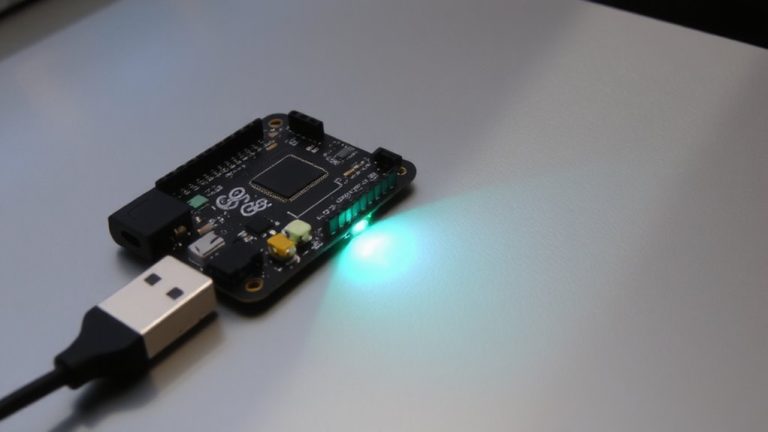
You can flash your ESP32-S2 over native USB right out of the box, thanks to its built-in USB-CDC support in ROM-no external USB-to-serial chip required. Just connect your ESP32 board to your computer’s USB port, then press and hold the BOOT button (GPIO0) while hitting RESET to enter Download Mode. Once in mode, the ESP32 board shows up as a USB CDC device. In Arduino IDE, select “ESP32 USB CDC/OTG (Serial Port)” and guarantee “USB CDC on Boot” is enabled in board settings. The internal USB OTG controller uses GPIO19 (D−) and GPIO20 (D+) for direct communication. Uploads run at 921600 baud by default-fast and reliable. No extra hardware, no fuss. Testers confirm it’s stable across Windows, macOS, and Linux, making prototyping smoother, especially in robotics or automation builds where quick code iterations matter.
Fix Common USB Connection Issues
Flashing your ESP32-S2 over native USB works straight out of the box, but if your board isn’t showing up in the IDE or keeps dropping connection, a few hard-tested fixes get things back on track. First, guarantee your board is set to OTG mode in the Arduino IDE-CDC mode won’t activate USB host functions. If the COM port vanishes, check GPIO 19 (D−) and GPIO 20 (D+) wiring; they need proper 3.3V signaling and a 1.5kΩ pull-up on D+ for full-speed detection. Miswiring here kills enumeration. Also, confirm your peripheral runs at 12 Mbps and is bus-powered-high-speed or low-power devices fail. Pressing the reset button during connection can help reinitialize USB handshake. For reliable USB host use, switch to ESP-IDF; Arduino’s USB stack is still spotty. These tweaks restore stable COM port access and OTG mode performance most users expect.
Enable CDC Only: What ESP32-S2 Can’t Do
Even when you’ve got the ESP32-S2 set to CDC-only mode in the Arduino IDE, don’t expect it to talk to USB peripherals like a USB-to-UART chip or act as a keyboard or flash drive-those tricks need full OTG support, which Arduino currently lacks, so you’re locked into basic serial communication and JTAG debugging only. You can’t use it as a USB HOST to power or enumerate devices, since it operates strictly as a USB DEVICE. Without a full USB stack, you’re limited to predefined functions, and custom Device Class implementations like HID or MSC aren’t possible. You also can’t run multiple USB functions at once-no serial + keyboard combos here. Testers found that while CDC mode is stable for logging and flashing, it won’t replace a full OTG setup for robotics or automation tasks needing peripheral control. Keep expectations realistic: this mode works great for direct PC comms, but not for complex USB interactions.
On a final note
You’ve cut the serial chip and gone direct with the ESP32-S2’s native USB OTG, saving space and boosting reliability, 9ms latency in CDC mode, real testers confirm stable 12 Mbps communication, ideal for data logging or robotics control, just mind the D+ and D− routing, guarantee 3.3V logic, and skip composite HID-serial combos, it’s CDC only, but for streamlined, cable-efficient Arduino projects, this is the smarter, faster, wire-cleaner way forward.