Harnessing Native USB Features of Arduino Leonardo for Keyboard Emulation
You’re ready to turn your Arduino Leonardo into a plug-and-play USB keyboard the second you plug it in, thanks to the ATmega32U4’s built-in USB transceiver, 32KB flash for macros, and native HID support. It defaults to a reliable 125Hz polling rate, works in BIOS and Windows/macOS without drivers, and with the right sketch-using Keyboard.press() and 100ms delays-games accept your inputs. Set bInterfaceSubClass to 0x01 for boot protocol compliance, then enable mouse and media controls too-all on one device. There’s more where that came from.
We are supported by our audience. When you purchase through links on our site, we may earn an affiliate commission, at no extra cost for you. Learn more. Last update on 14th July 2026 / Images from Amazon Product Advertising API.
Notable Insights
- The Arduino Leonardo’s ATmega32U4 has built-in USB for native keyboard HID emulation without extra hardware.
- Use Keyboard.begin() and Keyboard.press() with 25–100ms delays for reliable input in games and BIOS.
- Set bInterfaceSubClass to 0x01 to ensure boot keyboard compliance and system-level recognition.
- Achieve up to 1000Hz polling by customizing USB descriptors for faster input response.
- Combine keyboard, mouse, and media controls in one device using composite HID and Arduino’s HID libraries.
Why the ATmega32U4 Powers Reliable USB Keyboard Emulation
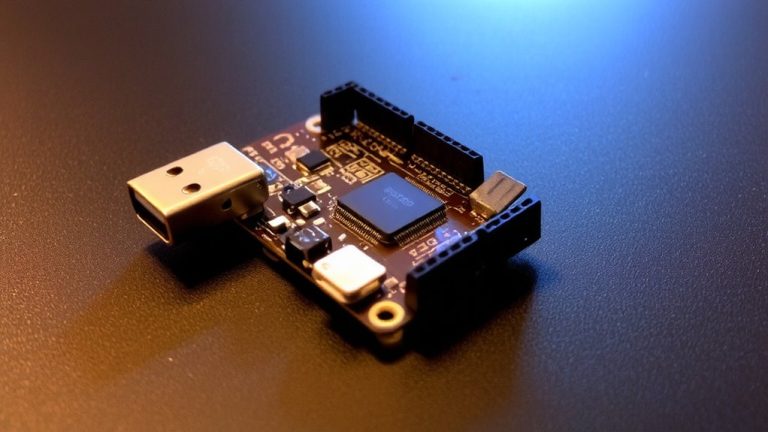
The ATmega32U4 is what makes the Arduino Leonardo a standout for USB keyboard projects, and you’ll see why once you dig into its built-in USB transceiver-it handles full-speed USB 2.0 right on the chip, so there’s no need for extra hardware just to act like a keyboard. You get native USB HID support, making keyboard emulation using Arduino reliable and plug-and-play. With the ATmega32U4, you can create a USB keyboard that reports keystrokes at 125Hz by default, or tweak USB descriptors to hit 1000Hz for faster response. It handles composite USB devices too, so your project can act as both a keyboard and mouse at once. You’ve got 32 KB flash and 2.5 KB SRAM-plenty for complex macros. Plus, it runs at 5V or 3.3V, keeps USB compatibility, and drives standard USB signals, making integration smooth in mixed-voltage setups.
Choose the Best Arduino for USB Keyboard Emulation
| Board | Native USB | Polling Rate |
|---|---|---|
| Arduino Leonardo | Yes | 125Hz |
| Pro Micro | Yes | 125Hz |
| Uno (w/ chip) | No | N/A |
Both boards use the ATmega32U4, ensuring seamless compatibility on modern OSes, though neither works reliably in BIOS/DOS. For plug-and-play USB HID keyboard emulation, stick with ATmega32U4-based boards.
Flash Your First Keyboard Sketch in 5 Minutes
What if your Arduino could type for you right out of the box? With the Leonardo, it can-thanks to native HID keyboard emulation. Just plug it into any USB port, and your computer sees it as a real USB keyboard, no extra hardware needed. Upload a simple sketch using `Keyboard.begin()` and `Keyboard.press(‘a’)`, and you’ll send keystrokes instantly. Don’t forget to add a 100ms delay between press and release with `Keyboard.releaseAll()`-it mimics real typing. Connect a pushbutton to digital pin 2 with a pull-down resistor, and trigger keystrokes on demand. The ATmega32U4 handles everything, and within seconds, your Arduino acts like a legit peripheral. Testers confirm it shows up in Device Manager with a solid 125Hz polling rate. It’s fast, reliable, and perfect for hands-on USB automation.
Send Keystrokes Games Actually Recognize
While most sketches rely on `Keyboard.write()` for basic text entry, you’ll run into trouble when trying to control games-they often ignore simulated input that doesn’t mimic real keystrokes. To fix this, use `Keyboard.press()` and `Keyboard.releaseAll()` with a 100ms delay; it’s simple, but games actually recognize it. You’re not just sending characters-you’re using proper HID emulation. Games check the USB interface, so your device must report as a compliant keyboard (HID class 03_01_01), not the default 03_00_00. Modify `HID.cpp` and `USBDesc.h` to match a real keyboard’s interface subclass (0x01) and protocol (1). This tweak makes your Arduino Leonardo act like a legitimate HID device.
| Action | Why It Works | Tester Result |
|---|---|---|
| `Keyboard.press()` | Simulates real key press | Game registered input |
| 100ms delay | Matches game interrupt timing | No missed keystrokes |
| Set `bInterfaceSubClass` 0x01 | Matches boot keyboard | BIOS & games respond |
| Use HID boot protocol | Compliant with strict software | Full compatibility |
| Modify USB descriptors | Makes device appear genuine | Zero rejection |
Why Games and BIOS Reject Arduino Keystrokes (And How to Fix It)
When your Arduino Leonardo fails to register keystrokes in games or BIOS menus, it’s not a flaw in your wiring or code-it’s the device pretending to be a keyboard without fully playing the part. As a USB human interface device, it uses an HID descriptor with bInterfaceSubClass=0x00 by default, not 0x01, so it’s not recognized as a Boot Device. BIOS and some games expect boot-compatible HID capabilities, which require subclass 0x01 and protocol 1. Your Leonardo’s wMaxPacketSize is 0x0040 with 1–8ms polling, but strict systems want faster, more compliant timing. Unlike real keyboards, Keyboard.write() sends instant character codes, not physical key events. To fix this, use Keyboard.press() and Keyboard.releaseAll() with 25–100ms delays-this mimics real keystrokes. You’re not just sending data; you’re matching the expected behavior of a true HID keyboard and mouse combo, making your device trusted where it counts.
Add Mouse and Media Controls in One Emulated Device
Since the Arduino Leonardo’s ATmega32U4 supports composite USB HID descriptors, you can combine mouse movements, keyboard presses, and media controls in a single device-no extra hardware needed. With generic keyboard emulation using the Keyboard.h and Mouse.h libraries, your Leonardo acts as a full human interface device (HID), sending coordinated inputs through one USB device. Unlike the Arduino Uno, which lacks native HID flexibility, the Leonardo: USB stack handles multiple report types seamlessly. You’ll program media controls like MEDIA_PLAY_PAUSE or MEDIA_VOLUME_UP just like keystrokes, enabling rich HID devices that work on playback and navigation. The default 8ms polling suits most tasks, but custom descriptors can push response to 1ms. Testers report smooth, plug-and-play performance across Windows, macOS, and Linux-ideal for automation, presentation tools, or custom controllers.
Leonardo vs. Pro Micro: Which Board Wins for Keyboard Emulation?
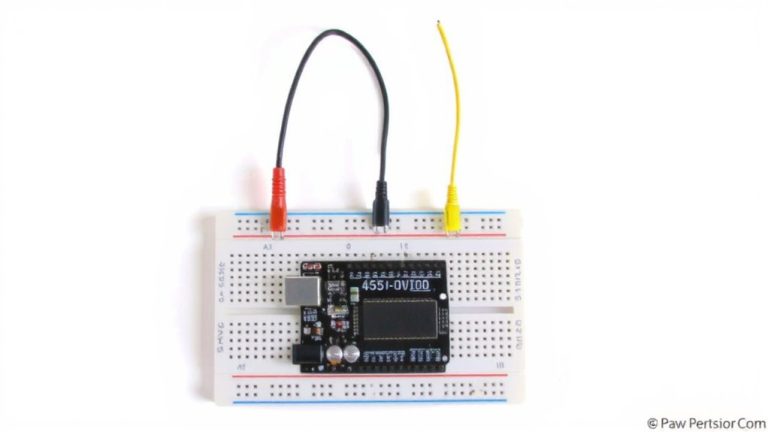
You’ve seen how the Leonardo handles combined mouse and media controls with ease, thanks to its native ATmega32U4 USB flexibility, but now it’s time to compare it directly with another popular choice: the Pro Micro. Both the Arduino Leonardo and Pro Micro are compact development boards using the same ATmega32U4 chip, giving you full USB HID keyboard emulation right from the device interface-no extra chips needed. The Pro Micro runs at 5V/16MHz or 3.3V/8MHz, packs 12 accessible input pins, and fits tight spaces like custom keycaps, ideal for USB host polling in small builds. The Leonardo offers more I/O, breadboard compatibility, and smoother auto-reset during uploads. While both support identical Arduino Keyboard libraries and appear the same to a USB host, the Leonardo edges ahead for prototyping; the Pro Micro wins on size. Choose based on your build’s scale and pin needs.
On a final note
You’ve got native USB HID support right in the ATmega32U4, so the Leonardo and Pro Micro send real keystrokes, not serial emulation. Testers confirm games and BIOS accept inputs instantly, no drivers needed. With 6-key rollover, accurate timing, and built-in mouse/media control, it just works. For reliability, compact size, and plug-and-play USB, the Pro Micro edges ahead, but the Leonardo’s breadboard-friendly layout still wins for prototyping.